Module 07: Load Balancing and DNS
Learning Objectives
By the end of this module, you will be able to:
- Demonstrate how Elastic Load Balancing (ELB) distributes incoming traffic across multiple targets to achieve high availability and fault tolerance
- Configure an Application Load Balancer (ALB) with listeners, rules, and target groups to route HTTP and HTTPS traffic based on request content
- Implement health checks for load balancer target groups to ensure traffic is sent only to healthy targets
- Use SSL/TLS termination on an ALB with certificates from AWS Certificate Manager (ACM) to encrypt client connections
- Deploy a Network Load Balancer (NLB) for TCP and UDP workloads that require ultra-low latency and static IP addresses
- Set up Amazon Route 53 hosted zones and DNS records to route end-user requests to your AWS resources
- Configure Route 53 routing policies (simple, weighted, latency-based, failover, geolocation, multivalue answer) to control how DNS queries are resolved
- Implement Route 53 health checks to monitor endpoint availability and enable automatic DNS failover
Prerequisites
- Completion of Module 03: Networking Basics (VPC) (VPCs, subnets, security groups, and Availability Zones for placing load balancers and targets)
- Completion of Module 04: Compute with Amazon EC2 (EC2 instances that serve as load balancer targets, Auto Scaling groups for dynamic capacity)
- An AWS account with console access (free tier is sufficient for most exercises)
Concepts
Elastic Load Balancing Overview
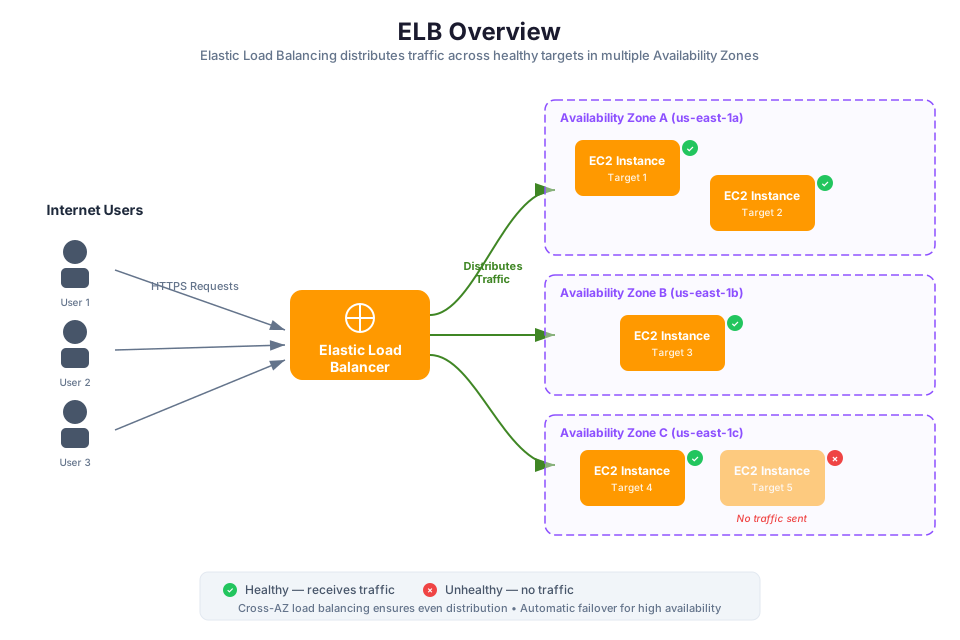
Elastic Load Balancing (ELB) sits between your users and your backend resources, spreading incoming requests across multiple targets (EC2 instances, containers, or IP addresses). Instead of one server handling all the traffic and becoming a single point of failure, the load balancer ensures that requests reach healthy targets across multiple Availability Zones.
In Module 03, you learned how to deploy resources across multiple Availability Zones for high availability. Load balancers build on that foundation by routing traffic only to healthy targets across those AZs. If an instance in one AZ fails, the load balancer automatically redirects traffic to healthy instances in other AZs.
Key benefits of Elastic Load Balancing:
- High availability. The load balancer distributes traffic across multiple AZs. If all targets in one AZ become unhealthy, traffic flows to targets in the remaining AZs.
- Fault tolerance. Health checks continuously monitor target health. Unhealthy targets are removed from rotation automatically, and traffic resumes when they recover.
- Automatic scaling. ELB scales its own capacity automatically to handle changes in incoming traffic. You do not need to provision or manage load balancer instances.
- Security. You can configure security groups on your load balancer (as you learned in Module 03) and terminate SSL/TLS connections at the load balancer to offload encryption from your backend targets.
ELB integrates with Amazon EC2 Auto Scaling, which you learned about in Module 04. When Auto Scaling launches new instances, they are automatically registered with the load balancer's target group. When instances are terminated, they are deregistered.
ALB vs. NLB vs. GLB: Load Balancer Types
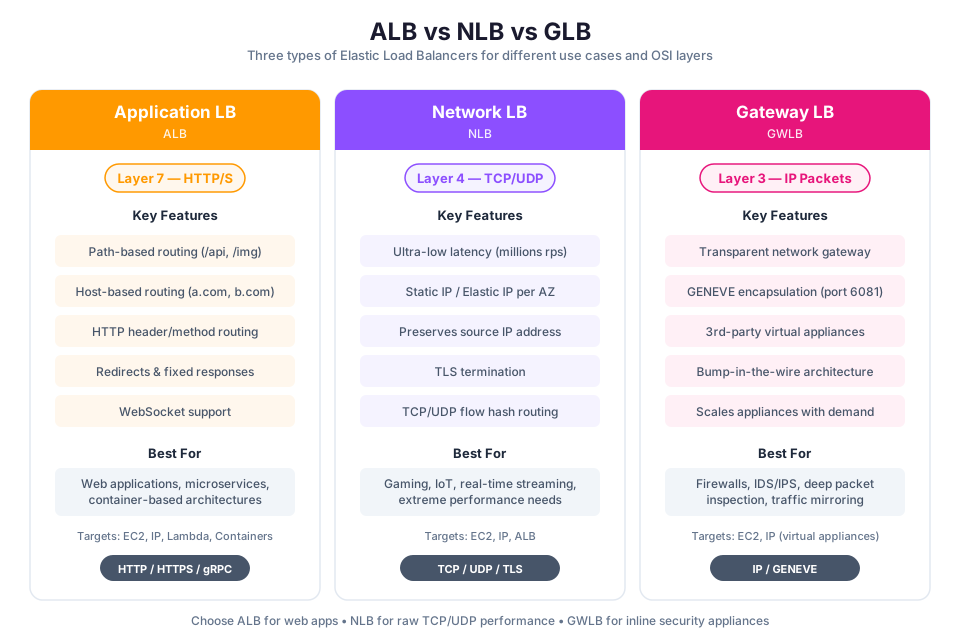
AWS offers three types of load balancers, each designed for different use cases. The type you choose depends on the protocol, performance requirements, and routing features your application needs.
| Feature | Application Load Balancer (ALB) | Network Load Balancer (NLB) | Gateway Load Balancer (GLB) |
|---|---|---|---|
| OSI Layer | Layer 7 (Application) | Layer 4 (Transport) | Layer 3 (Network) |
| Protocols | HTTP, HTTPS, gRPC | TCP, UDP, TLS | IP (all traffic) |
| Routing | Path-based, host-based, header-based, query string | Port-based | Transparent to applications |
| Performance | Good for web traffic | Ultra-low latency, millions of requests per second | Designed for appliance throughput |
| Static IP | No (use with Global Accelerator for static IPs) | Yes (one static IP per AZ) | No |
| SSL/TLS Termination | Yes | Yes (TLS listeners) | No |
| Use Cases | Web applications, microservices, REST APIs | Gaming, IoT, real-time streaming, financial trading | Third-party firewalls, intrusion detection, deep packet inspection |
Tip: For most web applications, start with an ALB. It provides the richest routing features for HTTP/HTTPS traffic. Use an NLB when you need TCP/UDP support, static IP addresses, or extreme performance. GLB is specialized for deploying and scaling third-party virtual network appliances.
Application Load Balancer Deep Dive
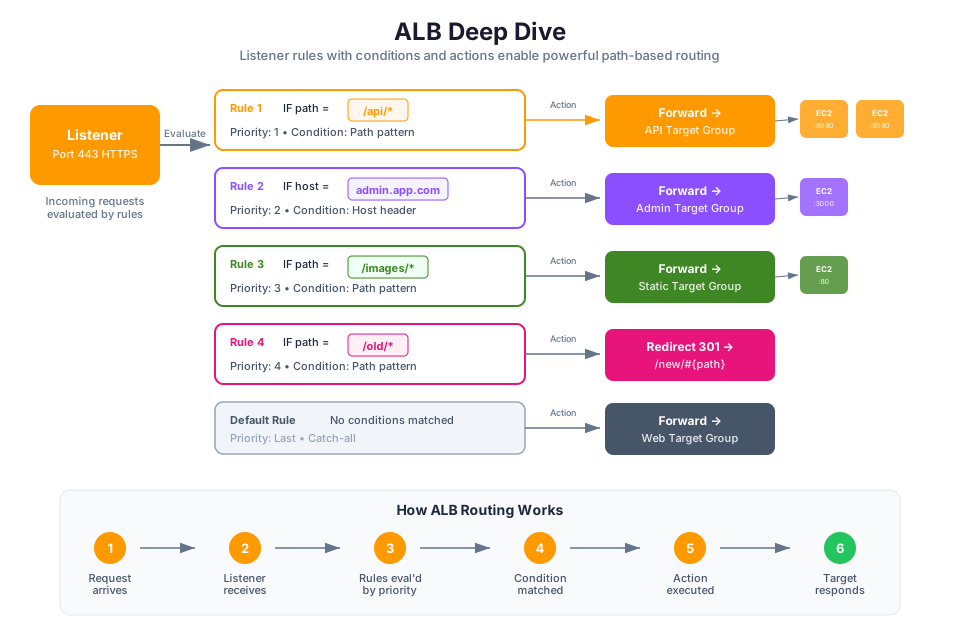
An Application Load Balancer operates at Layer 7 (the application layer) of the Open Systems Interconnection (OSI) model. It inspects the content of HTTP and HTTPS requests and makes routing decisions based on that content. This makes ALB the best choice for web applications, microservices, and API-based architectures.
Listeners
A listener checks for connection requests from clients using the protocol and port you configure. Every ALB requires at least one listener. You can configure listeners for HTTP (port 80), HTTPS (port 443), or both. When you create an HTTPS listener, you must specify an SSL/TLS certificate.
Rules
Each listener has rules that determine how the load balancer routes requests to targets. Rules consist of a priority, one or more conditions, and one or more actions. The load balancer evaluates rules in priority order and executes the action for the first rule whose conditions are met. Every listener has a default rule that handles requests that do not match any other rule.
Path-Based Routing
Path-based routing directs requests to different target groups based on the URL path. For example, you can route requests to /api/* to one set of backend servers and requests to /images/* to another set.
ALB Listener (port 443)
├── Rule 1: Path = /api/*    --> Target Group A (API servers)
├── Rule 2: Path = /images/* --> Target Group B (Image servers)
└── Default Rule             --> Target Group C (Web servers)
Host-Based Routing
Host-based routing directs requests to different target groups based on the Host header in the HTTP request. This allows a single ALB to serve multiple domains or subdomains.
ALB Listener (port 443)
├── Rule 1: Host = api.example.com  --> Target Group A
├── Rule 2: Host = app.example.com  --> Target Group B
└── Default Rule                    --> Target Group C
Tip: Combining path-based and host-based routing on a single ALB reduces costs compared to deploying separate load balancers for each application. You can route traffic for multiple microservices through one ALB using different rules.
Target Groups
A target group tells the load balancer where to send traffic. Each target group contains one or more registered targets and a health check configuration. Listener rules forward requests to one or more target groups.
Target Types
ALB target groups support three target types:
| Target Type | Description | Use Case |
|---|---|---|
| Instance | Routes traffic to EC2 instances by instance ID | Standard web servers, application servers |
| IP | Routes traffic to specific IP addresses (including targets outside the VPC) | Containers with dynamic port mapping, on-premises servers via VPN or Direct Connect |
| Lambda | Routes traffic to an AWS Lambda function | Serverless backends, lightweight APIs |
When you register EC2 instances as targets, the load balancer routes traffic to the primary private IP address of each instance. When you register IP addresses, you can target resources in peered VPCs, on-premises servers connected through AWS Direct Connect, or containers running on Amazon ECS.
Registering and Deregistering Targets
You can add targets to a target group at any time. In Module 04, you learned about Auto Scaling groups. When you attach a target group to an Auto Scaling group, instances are automatically registered when they launch and deregistered when they terminate.
# Register an EC2 instance with a target group
aws elbv2 register-targets \
  --target-group-arn arn:aws:elasticloadbalancing:us-east-1:123456789012:targetgroup/my-targets/1234567890123456 \
  --targets Id=i-0abcdef1234567890
Health Checks
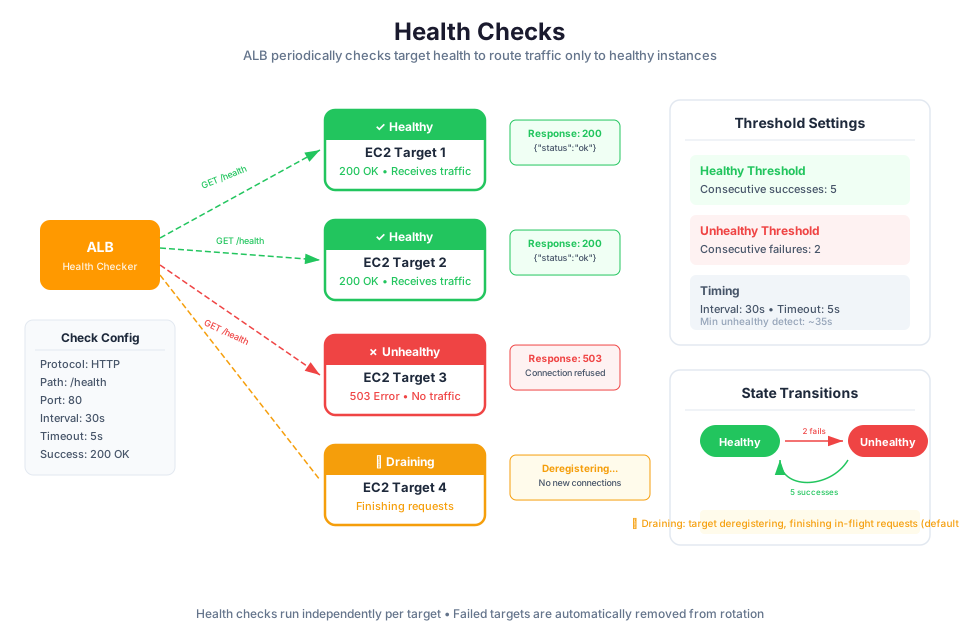
Health checks allow the load balancer to monitor the status of registered targets. The load balancer periodically sends requests to each target and evaluates the response to determine whether the target is healthy. Only healthy targets receive traffic from the load balancer.
How Health Checks Work
The load balancer sends a health check request to each registered target at a regular interval. If the target responds with a success status code within the timeout period, the load balancer considers it healthy. If the target fails to respond or returns an error status code for a specified number of consecutive checks, the load balancer marks it as unhealthy and stops sending traffic to it.
Configurable Parameters
| Parameter | Description | Default (ALB) |
|---|---|---|
| Protocol | The protocol used for health checks (HTTP or HTTPS) | HTTP |
| Path | The destination path for health check requests | / |
| Port | The port used for health checks | Traffic port |
| Healthy threshold | Number of consecutive successful checks before marking a target healthy | 5 |
| Unhealthy threshold | Number of consecutive failed checks before marking a target unhealthy | 2 |
| Timeout | Time in seconds to wait for a health check response | 5 |
| Interval | Time in seconds between health check requests | 30 |
| Success codes | HTTP status codes that indicate a healthy response | 200 |
Unhealthy Target Behavior
When a target fails its health checks, the load balancer stops routing new requests to that target. Existing connections may continue until they complete or time out (see Connection Draining below). The load balancer continues to perform health checks on unhealthy targets. When the target passes the healthy threshold number of consecutive checks, the load balancer marks it as healthy again and resumes sending traffic to it.
# Check the health status of targets in a target group
aws elbv2 describe-target-health \
  --target-group-arn arn:aws:elasticloadbalancing:us-east-1:123456789012:targetgroup/my-targets/1234567890123456
Expected output:
{
    "TargetHealthDescriptions": [
        {
            "Target": {
                "Id": "i-0abcdef1234567890",
                "Port": 80
            },
            "HealthCheckPort": "80",
            "TargetHealth": {
                "State": "healthy"
            }
        },
        {
            "Target": {
                "Id": "i-0abcdef0987654321",
                "Port": 80
            },
            "HealthCheckPort": "80",
            "TargetHealth": {
                "State": "unhealthy",
                "Reason": "Target.ResponseCodeMismatch",
                "Description": "Health checks failed with these codes: [503]"
            }
        }
    ]
}
Tip: Create a dedicated health check endpoint in your application (for example,
/health) that verifies the application can connect to its dependencies (database, cache). This gives you a more accurate picture of target health than checking the root path alone.
SSL/TLS Termination
SSL/TLS termination allows the load balancer to handle the encryption and decryption of HTTPS traffic on behalf of your backend targets. Clients connect to the load balancer over HTTPS, and the load balancer forwards the decrypted request to targets over HTTP. This is called SSL offloading.
AWS Certificate Manager (ACM)
AWS Certificate Manager (ACM) provides free public SSL/TLS certificates that you can use with ALB and NLB. ACM handles certificate provisioning, renewal, and deployment. You do not need to purchase certificates from a third-party certificate authority or manage certificate renewals manually.
To use HTTPS with an ALB:
- Request a public certificate in ACM for your domain (for example,
example.comand*.example.com). - Validate domain ownership through DNS validation (ACM adds a CNAME record to your hosted zone) or email validation.
- Create an HTTPS listener on your ALB and select the ACM certificate.
- Optionally, create an HTTP listener that redirects all HTTP traffic to HTTPS.
HTTPS Listener Configuration
When you create an HTTPS listener, you specify a security policy that defines the SSL/TLS protocols and ciphers the load balancer uses to negotiate connections with clients. AWS provides predefined security policies. Use the most recent policy for the strongest security.
SSL certificates are associated with the HTTPS listener. You can attach multiple certificates to a single listener using Server Name Indication (SNI), which allows the ALB to serve different certificates for different domains on the same listener.
Warning: SSL/TLS certificates from ACM are free, but the ALB itself incurs hourly charges and data processing charges. Review the ELB pricing page before deploying.
Connection Draining (Deregistration Delay)
When you deregister a target from a target group or when a health check marks a target as unhealthy, the load balancer does not immediately sever existing connections. Instead, it enters a deregistration delay period (also called connection draining) during which the load balancer allows in-flight requests to complete while stopping new requests from being routed to the target.
Key points about deregistration delay:
- The default deregistration delay is 300 seconds (5 minutes).
- You can configure the delay between 0 and 3600 seconds per target group.
- During the delay, the target is in a "draining" state. The load balancer sends no new requests to it.
- After the delay expires, the load balancer forcibly closes any remaining connections.
- Set a shorter delay for stateless applications that can handle abrupt disconnections. Set a longer delay for applications with long-lived connections or in-progress transactions.
Tip: For Auto Scaling groups, set the deregistration delay to match or exceed the time your application needs to finish processing in-flight requests. This prevents users from experiencing errors during scale-in events or rolling deployments.
Route 53 Overview: DNS as a Service

Amazon Route 53 is the DNS service on AWS. It translates human-readable domain names (like www.example.com) into IP addresses that computers use to find each other. Beyond basic DNS resolution, Route 53 also handles domain registration and health-based traffic routing, making it a central piece of any production architecture on AWS.
- Domain registration. You can register new domain names (for example,
example.com) directly through Route 53. - DNS routing. Route 53 translates human-readable domain names into IP addresses that computers use to connect to each other. When a user types
www.example.comin a browser, Route 53 responds with the IP address of the resource that serves that domain. - Health checking. Route 53 monitors the health of your resources and routes traffic only to healthy endpoints.
Hosted Zones
A hosted zone is a container for DNS records that define how you want to route traffic for a domain and its subdomains. There are two types:
- Public hosted zone. Contains records that specify how to route traffic on the internet. When you register a domain with Route 53 or transfer DNS management to Route 53, it creates a public hosted zone automatically.
- Private hosted zone. Contains records that specify how to route traffic within one or more VPCs. Use private hosted zones for internal DNS resolution (for example,
database.internal.example.comresolving to a private IP address).
Each hosted zone has a set of name server (NS) records that Route 53 assigns. These name servers answer DNS queries for your domain.
Record Types
Route 53 supports many DNS record types. The most commonly used types for AWS architectures are:
| Record Type | Purpose | Example Value |
|---|---|---|
| A | Maps a domain name to an IPv4 address | 192.0.2.1 |
| AAAA | Maps a domain name to an IPv6 address | 2001:0db8:85a3::8a2e:0370:7334 |
| CNAME | Maps a domain name to another domain name | app.example.com -> d111111abcdef8.cloudfront.net |
| Alias | Route 53-specific record that maps a domain name to an AWS resource | example.com -> ALB DNS name |
Alias Records vs. CNAME Records
Alias records are a Route 53-specific extension to DNS. They look like CNAME records but have important differences:
| Feature | Alias Record | CNAME Record |
|---|---|---|
| Zone apex support | Yes (can be used at the root domain, e.g., example.com) | No (cannot be used at the zone apex per DNS specification) |
| Query charges | Free for queries to AWS resources (ALB, CloudFront, S3) | Standard Route 53 query charges apply |
| Target types | AWS resources only (ALB, NLB, CloudFront, S3, Elastic Beanstalk, another Route 53 record) | Any domain name |
| Health check integration | Inherits the health of the target AWS resource | Requires a separate health check |
Tip: Always use Alias records when pointing a domain to an AWS resource such as an ALB or CloudFront distribution. Alias records are free, support the zone apex, and automatically reflect changes to the target resource's IP addresses.
Routing Policies

When you create a DNS record in Route 53, you choose a routing policy that determines how Route 53 responds to DNS queries. Each policy serves a different traffic management use case.
| Routing Policy | How It Works | Use Case |
|---|---|---|
| Simple | Returns a single resource (or multiple values chosen at random by the client) | Single resource, no special routing requirements |
| Weighted | Distributes traffic across multiple resources based on assigned weights (0 to 255) | A/B testing, gradual deployments, proportional load distribution |
| Latency-based | Routes traffic to the AWS Region that provides the lowest latency for the user | Multi-Region applications where response time matters |
| Failover | Routes traffic to a primary resource; if it fails health checks, routes to a secondary resource | Active-passive disaster recovery |
| Geolocation | Routes traffic based on the geographic location of the user (continent, country, or US state) | Content localization, regulatory compliance, geographic restrictions |
| Multivalue answer | Returns up to eight healthy records selected at random | Simple load balancing across multiple resources with health checking |
Weighted Routing Example
Weighted routing is useful for gradually shifting traffic during deployments. For example, you can send 90% of traffic to the current version and 10% to a new version:
www.example.com  A  Weighted  Weight=90  --> ALB-v1 (current version)
www.example.com  A  Weighted  Weight=10  --> ALB-v2 (new version)
If the new version performs well, you gradually increase its weight until it receives 100% of traffic.
Failover Routing Example
Failover routing requires a health check on the primary record. If the primary resource fails the health check, Route 53 automatically responds with the secondary resource:
www.example.com  A  Failover  Primary    --> ALB in us-east-1 (health check attached)
www.example.com  A  Failover  Secondary  --> ALB in us-west-2 (standby)
Tip: Combine routing policies with health checks for robust traffic management. For example, use latency-based routing with health checks so that Route 53 routes users to the lowest-latency healthy Region.
Route 53 Health Checks
Route 53 health checks monitor the health and performance of your resources. They are separate from ELB health checks and operate at the DNS level. Route 53 uses health check results to determine which DNS records to include in responses to queries.
Types of Health Checks
Route 53 supports three types of health checks:
- Endpoint health checks. Route 53 sends requests to a specified IP address or domain name at regular intervals. You configure the protocol (HTTP, HTTPS, or TCP), port, and path. Route 53 health checkers are distributed across multiple locations worldwide.
- Calculated health checks. These monitor the status of other health checks. You define a parent health check that is healthy only when a specified number of child health checks are healthy. For example, "healthy when at least 2 of 3 child checks are healthy."
- CloudWatch alarm health checks. These monitor the state of a CloudWatch alarm. The health check is healthy when the alarm is in the OK state and unhealthy when the alarm is in the ALARM state.
Health Check Configuration
For endpoint health checks, you configure:
| Parameter | Description | Default |
|---|---|---|
| Protocol | HTTP, HTTPS, or TCP | HTTP |
| IP address or domain | The endpoint to monitor | (required) |
| Port | The port to connect to | 80 |
| Path | The URL path for HTTP/HTTPS checks | / |
| Request interval | How often Route 53 sends health check requests (10 or 30 seconds) | 30 seconds |
| Failure threshold | Number of consecutive failures before marking unhealthy | 3 |
| String matching | Optional: check if the response body contains a specific string (first 5,120 bytes) | Disabled |
Failover with Health Checks
When you associate a health check with a DNS record that uses failover routing, Route 53 automatically switches traffic from the primary resource to the secondary resource when the primary fails its health check. When the primary recovers and passes its health check again, Route 53 routes traffic back to it.
This pattern is the foundation of DNS-based disaster recovery. In a multi-Region architecture, you deploy your application in two Regions and use Route 53 failover routing to direct traffic to the healthy Region:
Primary Region (us-east-1)
├── ALB --> EC2 instances
└── Route 53 health check monitoring the ALB

Secondary Region (us-west-2)
├── ALB --> EC2 instances
└── Activated when primary health check fails
Warning: Route 53 health checks incur charges. Each health check costs a monthly fee, with additional charges for HTTPS checks, string matching, and fast intervals (10 seconds). Review the Route 53 pricing page before creating health checks.
Instructor Notes
Estimated lecture time: 90 minutes
Common student questions:
-
Q: When should I use an ALB versus an NLB? A: Use an ALB when your application uses HTTP or HTTPS and you need content-based routing (path-based, host-based, or header-based). ALB is the right choice for web applications, REST APIs, and microservices. Use an NLB when your application uses TCP or UDP, when you need ultra-low latency, when you need static IP addresses, or when you need to handle millions of requests per second. Common NLB use cases include gaming servers, IoT backends, and financial trading platforms. See the ELB product comparison for details.
-
Q: What is the difference between a Route 53 Alias record and a CNAME record? A: Both map one domain name to another, but Alias records are a Route 53-specific feature with three advantages: they work at the zone apex (for example,
example.comwithout a subdomain prefix), they are free for queries to AWS resources, and they automatically track IP address changes of the target resource. CNAME records cannot be used at the zone apex (this is a DNS specification limitation, not an AWS limitation) and incur standard query charges. Always use Alias records when pointing to AWS resources. See the alias vs. CNAME comparison for a full breakdown. -
Q: How do ELB health checks differ from Route 53 health checks? A: ELB health checks operate at the load balancer level. They monitor individual targets (EC2 instances, containers, IPs) within a target group and remove unhealthy targets from the load balancer's rotation. Route 53 health checks operate at the DNS level. They monitor entire endpoints (such as a load balancer or a web server) and influence which DNS records Route 53 returns in response to queries. You typically use both together: ELB health checks manage traffic within a single Region, and Route 53 health checks manage traffic across Regions for failover or latency-based routing.
-
Q: Do I need to register my domain with Route 53 to use Route 53 for DNS? A: No. You can register your domain with any registrar and still use Route 53 as your DNS service. You create a hosted zone in Route 53, then update the name server records at your registrar to point to the Route 53 name servers. However, registering with Route 53 simplifies the setup because Route 53 automatically creates the hosted zone and configures the name servers.
Teaching tips:
- Start by connecting to Module 04's Auto Scaling concepts. Draw a VPC with two AZs on the whiteboard, place EC2 instances in each AZ, and then add an ALB in front of them. Show how the ALB distributes traffic across AZs and how it works with Auto Scaling to add or remove instances. This reinforces the architecture students built in Module 04 and shows where load balancing fits.
- When explaining ALB routing rules, use a real-world analogy: the ALB is like a receptionist in an office building who reads the visitor's request (the HTTP headers and path) and directs them to the correct department (target group). An NLB is like a phone switchboard that routes calls based on the phone number (port) without listening to the conversation.
- Use the comparison tables for ALB vs. NLB vs. GLB and for routing policies. Walk through each row and ask students to identify which option fits a given scenario. For example: "Your application needs to handle WebSocket connections and route based on URL path. Which load balancer type do you choose?" (Answer: ALB.)
- When covering Route 53, draw the DNS resolution flow on the whiteboard: browser -> recursive resolver -> Route 53 name server -> returns IP address -> browser connects to the resource. This helps students understand what happens "behind the scenes" when they type a URL.
Pause points:
- After the ALB vs. NLB vs. GLB comparison: ask students which load balancer type they would choose for a real-time multiplayer game server that uses UDP (answer: NLB, because it supports UDP and provides ultra-low latency).
- After health checks: ask students what happens if all targets in a target group fail their health checks (answer: the load balancer returns an HTTP 503 error to clients because there are no healthy targets to route to).
- After Route 53 routing policies: present a scenario where a company has users in North America and Europe and wants to route each group to the nearest Region. Ask students which routing policy to use (answer: latency-based routing, which routes users to the Region with the lowest network latency).
- After Route 53 health checks: ask students to describe how they would set up DNS-based failover between two Regions using Route 53 (answer: create failover records with a health check on the primary record; when the primary fails, Route 53 returns the secondary record).
Key Takeaways
- Elastic Load Balancing distributes traffic across multiple targets and AZs for high availability. Use ALB for HTTP/HTTPS workloads with content-based routing, NLB for TCP/UDP workloads requiring ultra-low latency and static IPs, and GLB for third-party network appliances.
- Health checks are essential for both load balancers and DNS. ELB health checks remove unhealthy targets from a target group, while Route 53 health checks enable DNS-level failover across Regions.
- Route 53 Alias records are the preferred way to point domains to AWS resources. They are free for AWS resource queries, support the zone apex, and automatically track IP address changes.
- Route 53 routing policies give you fine-grained control over traffic distribution: use weighted routing for gradual deployments, latency-based routing for multi-Region performance, and failover routing for disaster recovery.
- SSL/TLS termination at the load balancer with ACM certificates simplifies certificate management and offloads encryption from your backend targets.
AWS Bootcamp: From Novice to Architect Author: Samuel Ogunti License: CC BY-NC 4.0