Module 15: Cost Optimization
Learning Objectives
By the end of this module, you will be able to:
- Analyze AWS pricing models (on-demand, reserved, savings plans, spot) and evaluate which model is most cost-effective for a given workload pattern
- Assess an AWS environment's spending using AWS Cost Explorer to identify cost trends, anomalies, and the top contributing services
- Recommend a tagging strategy for cost allocation that enables teams to attribute spending to specific projects, environments, and owners
- Evaluate right-sizing recommendations from AWS Compute Optimizer and justify instance type changes based on utilization data
- Analyze common cost traps (idle resources, unattached EBS volumes, over-provisioned instances, data transfer charges) and recommend remediation actions
- Assess the trade-offs between Savings Plans and Reserved Instances, and recommend the appropriate commitment model based on workload predictability and flexibility requirements
- Optimize storage costs by recommending S3 lifecycle policies, EBS volume type changes, and storage class transitions based on access patterns
- Justify budget alert configurations using AWS Budgets that provide early warning of cost overruns without generating excessive notifications
Prerequisites
- Completion of Module 01: Cloud Fundamentals (AWS Free Tier, billing basics, and the zero-spend budget you created in Lab 01)
- Completion of Module 04: Compute with Amazon EC2 (EC2 instance types, pricing models, and Auto Scaling that directly affect compute costs)
- Completion of Module 05: Storage with Amazon S3 (S3 storage classes and lifecycle policies for storage cost optimization)
- Completion of Module 06: Databases with Amazon RDS and DynamoDB (RDS instance sizing, DynamoDB capacity modes, and read replicas that affect database costs)
- Completion of Module 09: Serverless Computing with AWS Lambda (Lambda pricing model based on invocations and duration)
- Completion of Module 14: Monitoring and Observability (CloudWatch metrics that provide the utilization data needed for right-sizing decisions)
- Familiarity with all prior modules, as this module optimizes costs across the entire infrastructure built throughout the bootcamp
Concepts
How AWS Pricing Works

AWS uses a pay-as-you-go pricing model. You pay only for the resources you consume, with no upfront commitments or long-term contracts (unless you choose to make commitments for discounts). Each AWS service has its own pricing dimensions.
Common pricing dimensions across services:
| Dimension | Services | Example |
|---|---|---|
| Compute time | EC2, Lambda, Fargate, RDS | Per hour (EC2), per millisecond (Lambda), per vCPU-hour (Fargate) |
| Storage volume | S3, EBS, RDS, DynamoDB | Per GB-month |
| Data transfer | All services | Per GB transferred out to the internet or across Regions |
| API requests | S3, DynamoDB, API Gateway, KMS | Per 1,000 or 1,000,000 requests |
| Provisioned capacity | RDS, DynamoDB (provisioned), ElastiCache | Per unit-hour (RCU, WCU, instance hours) |
Data transfer is one of the most overlooked cost drivers. Transfer within the same Availability Zone is free. Transfer between AZs in the same Region incurs a small charge. Transfer between Regions or out to the internet incurs a larger charge. The AWS Pricing Calculator helps you estimate costs before deploying resources.
Tip: Always check the AWS Free Tier page before creating resources. Many services offer a free tier for the first 12 months (EC2 t2.micro/t3.micro, S3 5 GB, RDS db.t2.micro/db.t3.micro) or permanently (Lambda 1M requests/month, DynamoDB 25 GB storage).
AWS Cost Explorer
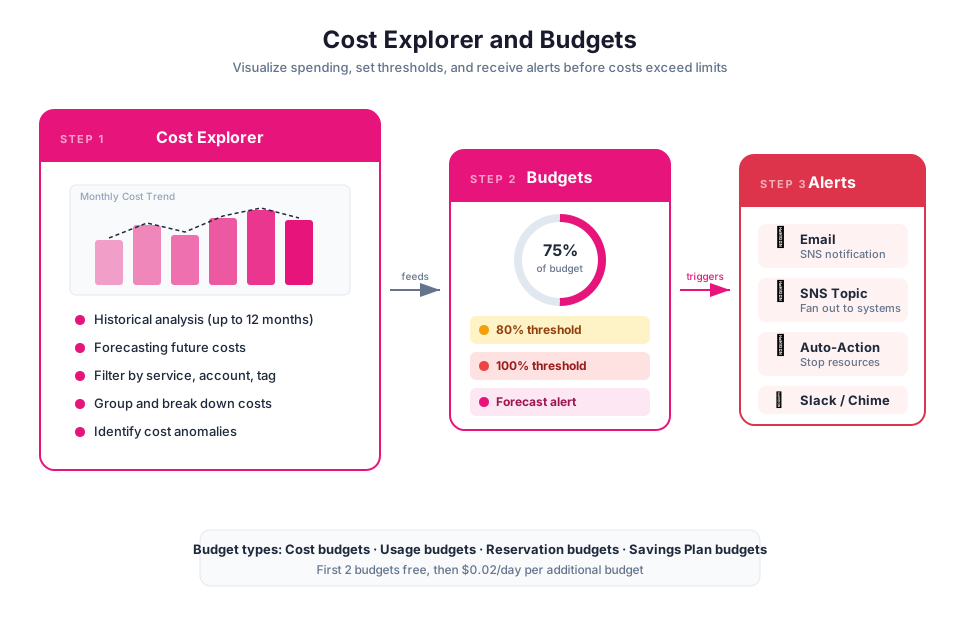
AWS Cost Explorer is your primary tool for understanding where money goes. It visualizes spending across services, accounts, Regions, and tags, and projects future costs based on historical trends.
Key features:
- Cost and usage reports. View spending by service, account, Region, tag, or any combination. Filter and group data to identify which resources drive the most cost.
- Time-based analysis. Compare spending across months, quarters, or custom date ranges. Identify trends (is spending increasing month over month?) and anomalies (why did S3 costs spike last Tuesday?).
- Forecasting. Cost Explorer projects future spending based on historical patterns. Use forecasts to set realistic budgets and identify potential overruns before they happen.
- Savings Plans and Reserved Instance recommendations. Cost Explorer analyzes your usage patterns and recommends Savings Plans or Reserved Instances that would reduce costs based on your actual consumption.
Cost Allocation Tags
Cost allocation tags are key-value pairs you attach to resources so you can slice your bill by project, team, or environment. Once you activate them in the Billing console, they show up as filterable dimensions in Cost Explorer.
A recommended tagging strategy includes:
| Tag Key | Purpose | Example Values |
|---|---|---|
Project | Identify which project the resource belongs to | bootcamp, customer-portal, data-pipeline |
Environment | Distinguish between environments | production, staging, development |
Owner | Identify who is responsible for the resource | team-backend, team-data, jsmith |
CostCenter | Map to organizational cost centers | engineering, marketing, operations |
Tip: Enforce tagging from day one using AWS Organizations tag policies or IAM policy conditions that deny resource creation without required tags. Retroactively tagging hundreds of resources is tedious and error-prone.
AWS Budgets
AWS Budgets lets you draw a line in the sand for spending and get notified when you approach or cross it. You can track overall account costs, per-service spending, spending by tag, Reserved Instance utilization, and Savings Plans coverage.
Budget types:
| Budget Type | What It Tracks | Use Case |
|---|---|---|
| Cost budget | Dollar amount spent | "Alert me when monthly spending exceeds $500" |
| Usage budget | Resource consumption (hours, GB, requests) | "Alert me when EC2 hours exceed 1,000 this month" |
| RI utilization budget | How much of your Reserved Instance commitment is being used | "Alert me if RI utilization drops below 80%" |
| Savings Plans coverage budget | What percentage of eligible usage is covered by Savings Plans | "Alert me if coverage drops below 70%" |
You can configure budgets to send notifications at multiple thresholds (for example, 50%, 80%, and 100% of the budgeted amount) and to trigger automated actions such as applying an IAM policy that restricts resource creation when the budget is exceeded.
Warning: Budget alerts are reactive, not preventive. They notify you after spending has reached the threshold, not before. For hard spending limits, use budget actions that automatically apply restrictive IAM policies when thresholds are crossed.
Right-Sizing with AWS Compute Optimizer
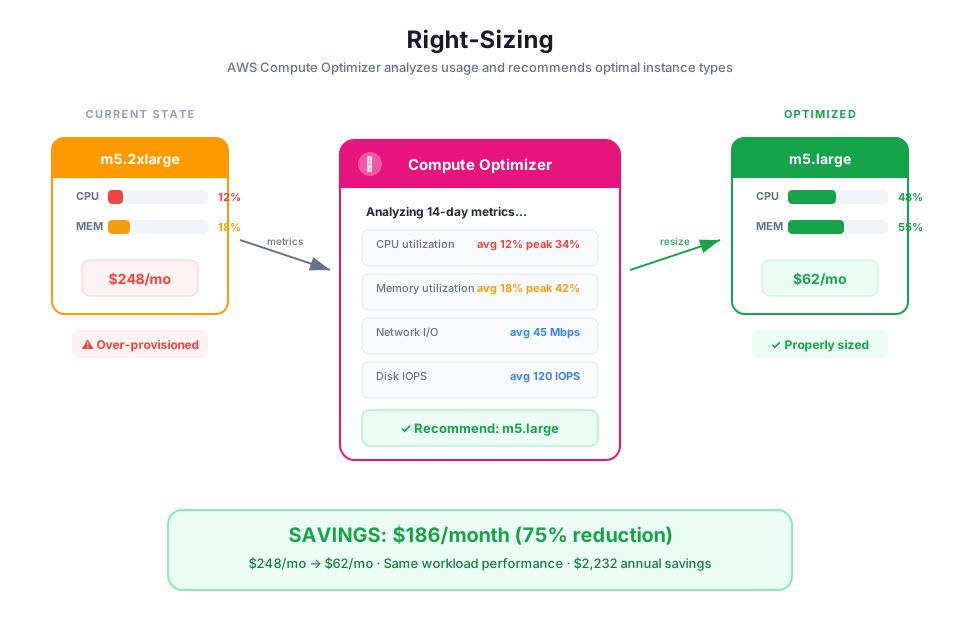
AWS Compute Optimizer looks at the CloudWatch metrics for your EC2 instances, EBS volumes, Lambda functions, and ECS services, then tells you whether each resource is the right size. It uses machine learning to compare your actual utilization against the capacity you are paying for and flags resources that are over-provisioned (wasting money) or under-provisioned (risking performance).
How Compute Optimizer Works
Compute Optimizer collects CloudWatch metrics (CPU, memory, network, disk) over a lookback period (default 14 days, configurable up to 93 days). It compares your actual utilization against the capacity of your current resource configuration and recommends alternatives.
For EC2 instances, recommendations fall into three categories:
| Finding | Meaning | Action |
|---|---|---|
| Over-provisioned | The instance has more CPU/memory than the workload needs | Downsize to a smaller instance type |
| Under-provisioned | The instance does not have enough CPU/memory for the workload | Upsize to a larger instance type |
| Optimized | The current instance type matches the workload | No action needed |
Each recommendation includes an estimated monthly savings (or cost increase for under-provisioned resources) and a performance risk rating.
Tip: Right-size before committing. Analyze Compute Optimizer recommendations and adjust instance types first, then purchase Savings Plans or Reserved Instances based on the optimized configuration. Committing to a discount on an over-provisioned instance locks in waste.
Savings Plans and Reserved Instances
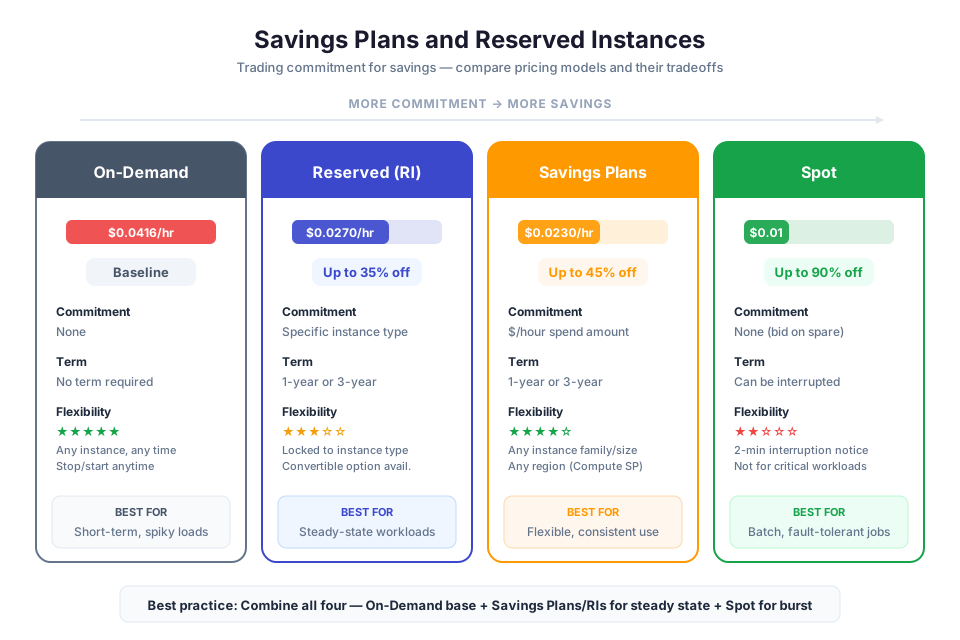
AWS offers two commitment-based pricing models that provide significant discounts (up to 72%) compared to on-demand pricing in exchange for a one-year or three-year usage commitment.
Savings Plans
Savings Plans work like a phone plan: you commit to spending a certain dollar amount per hour on compute for one or three years, and AWS gives you a discount on all eligible usage (EC2, Fargate, Lambda) up to that commitment level.
| Plan Type | Flexibility | Discount Level |
|---|---|---|
| Compute Savings Plans | Apply across EC2, Fargate, and Lambda regardless of instance family, size, OS, tenancy, or Region | Moderate (up to 66%) |
| EC2 Instance Savings Plans | Apply to a specific instance family in a specific Region (for example, m5 in us-east-1) | Higher (up to 72%) |
Reserved Instances
Reserved Instances (RIs) lock you into a specific instance type in a specific Region for one or three years in exchange for a discount. They are available for EC2, RDS, ElastiCache, OpenSearch, and Redshift.
Payment options affect the discount level:
| Payment Option | Upfront Cost | Discount Level |
|---|---|---|
| All Upfront | Full payment at purchase | Highest discount |
| Partial Upfront | Partial payment at purchase, remainder monthly | Moderate discount |
| No Upfront | No upfront payment, full monthly payments | Lowest discount |
Choosing Between Savings Plans and Reserved Instances
| Factor | Savings Plans | Reserved Instances |
|---|---|---|
| Flexibility | High (Compute SP applies across services and Regions) | Low (locked to specific instance type and Region) |
| Services covered | EC2, Fargate, Lambda | EC2, RDS, ElastiCache, OpenSearch, Redshift |
| Best for | Workloads that may change instance types or Regions | Stable workloads with predictable instance requirements |
| Recommendation | Start here for most workloads | Use for RDS and other services not covered by Savings Plans |
Tip: Use Cost Explorer's Savings Plans recommendations to determine the optimal commitment amount. Start with a conservative commitment (covering 50% to 70% of your baseline usage) and increase over time as you gain confidence in your usage patterns.
Common Cost Traps and Remediation
Even well-architected environments accumulate waste over time. Regular cost reviews should check for these common traps:
| Cost Trap | How to Detect | Remediation |
|---|---|---|
| Idle EC2 instances | Compute Optimizer shows "over-provisioned" with near-zero CPU | Stop or terminate unused instances |
| Unattached EBS volumes | Cost Explorer shows EBS charges with no associated instance | Delete unattached volumes after verifying no data loss |
| Old EBS snapshots | Snapshot storage grows over time | Implement lifecycle policies to delete snapshots older than N days |
| Over-provisioned RDS instances | CloudWatch shows low CPU and memory utilization | Downsize the instance class |
| S3 data in wrong storage class | S3 analytics shows infrequent access patterns | Apply lifecycle policies to transition to S3 Standard-IA or Glacier |
| Unused Elastic IPs | Elastic IPs not associated with running instances incur charges | Release unused Elastic IPs |
| NAT Gateway data processing | High data transfer through NAT Gateways | Use VPC endpoints for AWS service traffic to avoid NAT Gateway charges |
| CloudWatch Logs retention | Logs retained indefinitely with no retention policy | Set retention periods; archive old logs to S3 |
Tip: Schedule a monthly cost review meeting where the team reviews Cost Explorer reports, Compute Optimizer recommendations, and budget alerts. Assign action items for each identified optimization. Cost optimization is an ongoing practice, not a one-time project.
Storage Cost Optimization
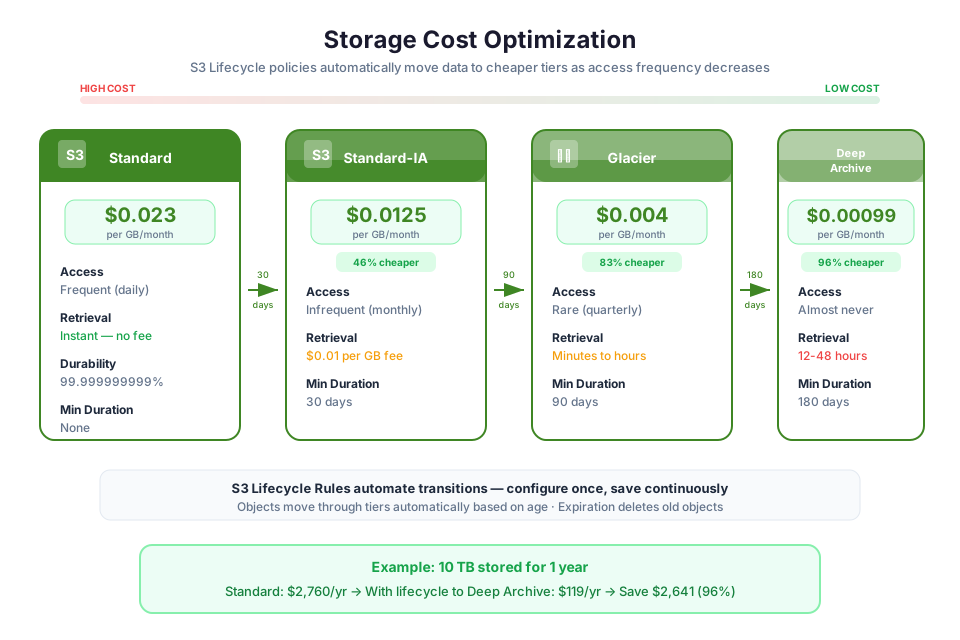
Storage costs accumulate across S3, EBS, RDS, and DynamoDB. Each service offers options to reduce costs based on access patterns.
S3 Storage Class Optimization
In Module 05, you learned about S3 storage classes. Choosing the right class based on access frequency is one of the highest-impact cost optimizations:
| Access Pattern | Recommended Storage Class | Relative Cost |
|---|---|---|
| Frequently accessed (multiple times per day) | S3 Standard | Highest |
| Infrequently accessed (once per month) | S3 Standard-IA | ~45% less than Standard |
| Rarely accessed (once per quarter) | S3 Glacier Flexible Retrieval | ~70% less than Standard |
| Archive (once per year or less) | S3 Glacier Deep Archive | ~95% less than Standard |
Use S3 Storage Lens and S3 Analytics to analyze access patterns and identify buckets or prefixes that would benefit from lifecycle transitions.
EBS Volume Optimization
EBS volume costs depend on the volume type and provisioned size. Common optimizations:
- Switch from
gp2togp3volumes.gp3provides the same baseline performance at a lower price and allows you to provision IOPS and throughput independently. - Reduce volume size if the provisioned capacity significantly exceeds actual usage.
- Delete snapshots that are no longer needed for backup or recovery.
DynamoDB Capacity Mode
DynamoDB offers two capacity modes with different cost characteristics:
| Mode | Best For | Pricing |
|---|---|---|
| On-demand | Unpredictable or spiky traffic | Per-request pricing (higher per-request cost, no capacity planning) |
| Provisioned | Predictable, steady traffic | Per-RCU/WCU-hour (lower per-request cost, requires capacity planning) |
If your DynamoDB table has predictable traffic patterns, switching from on-demand to provisioned mode (with auto scaling) can reduce costs by 50% or more.
Instructor Notes
Estimated lecture time: 75 to 90 minutes
Common student questions:
-
Q: How do I know if I should buy Savings Plans or Reserved Instances? A: Start with Savings Plans for compute workloads (EC2, Fargate, Lambda) because they offer more flexibility. Use Reserved Instances for services not covered by Savings Plans (RDS, ElastiCache, OpenSearch). Check Cost Explorer's recommendations for both options and compare the projected savings. Start with a conservative commitment and increase over time.
-
Q: What if I buy a Reserved Instance and then my workload changes? A: Standard Reserved Instances can be sold on the Reserved Instance Marketplace if you no longer need them. Convertible Reserved Instances can be exchanged for a different instance type, but they offer a smaller discount. Savings Plans are generally safer because Compute Savings Plans apply across instance families and Regions.
-
Q: How much can I realistically save with cost optimization? A: Most organizations can reduce their AWS bill by 20% to 40% through a combination of right-sizing (10% to 20%), commitment discounts (20% to 30%), and eliminating waste (5% to 15%). The exact savings depend on your current efficiency. Organizations that have never optimized typically see the largest improvements.
-
Q: Is the AWS Free Tier really free? A: The Free Tier has specific limits per service. If you exceed those limits, you are charged at the standard rate. Common gotchas include: leaving EC2 instances running 24/7 (the free tier covers 750 hours per month, which is one instance running continuously), creating resources in multiple Regions (free tier limits are per-Region for some services), and forgetting to delete resources after labs. Always set up a budget alert as you did in Lab 01.
Teaching tips:
- Start the lecture by asking students to estimate how much their bootcamp lab resources would cost if left running for a month. Use the AWS Pricing Calculator to calculate the actual cost. The gap between their estimate and reality motivates the importance of cost awareness.
- When explaining Savings Plans vs. Reserved Instances, use a real-world analogy: Savings Plans are like a gym membership that works at any gym in the chain (flexible), while Reserved Instances are like a membership at a specific gym location (cheaper but less flexible).
- Pause after the common cost traps section for a group exercise. Give each team a mock Cost Explorer report showing spending by service and ask them to identify the top three optimization opportunities.
- Emphasize that cost optimization is a continuous practice, not a one-time project. The best teams review costs monthly and treat cost efficiency as a non-functional requirement alongside performance and security.
- Connect this module to Module 14: the same CloudWatch metrics used for operational monitoring (CPU utilization, memory usage) are the data source for right-sizing decisions.
Key Takeaways
- AWS pricing is pay-as-you-go with multiple dimensions (compute time, storage, data transfer, requests); understanding the pricing model for each service you use is the foundation of cost optimization.
- Use Cost Explorer to analyze spending trends, cost allocation tags to attribute costs to teams and projects, and AWS Budgets to set alerts before spending exceeds expectations.
- Right-size resources first using Compute Optimizer recommendations, then commit to Savings Plans or Reserved Instances for predictable baseline usage.
- Eliminate waste regularly: terminate idle instances, delete unattached volumes and old snapshots, set log retention policies, and use VPC endpoints to reduce NAT Gateway data transfer charges.
- Cost optimization is a continuous practice; schedule monthly reviews and treat cost efficiency as a non-functional requirement alongside performance, security, and reliability.
AWS Bootcamp: From Novice to Architect Author: Samuel Ogunti License: CC BY-NC 4.0