Module 12: CI/CD Pipelines
Learning Objectives
By the end of this module, you will be able to:
- Build an automated Continuous Integration and Continuous Delivery (CI/CD) pipeline using AWS CodePipeline that moves code from source through build, test, and deployment stages
- Construct a buildspec.yml file for AWS CodeBuild that defines install, pre-build, build, and post-build phases for compiling, testing, and packaging application artifacts
- Integrate AWS CodeDeploy with deployment groups and an appspec.yml file to automate application deployments to Amazon EC2 instances and Amazon ECS services
- Troubleshoot failed pipeline executions by interpreting CodeBuild logs, CodeDeploy lifecycle event errors, and CodePipeline stage transition failures
- Compare deployment strategies (all-at-once, rolling, blue/green, and canary) and differentiate the risk, downtime, and rollback characteristics of each
- Differentiate between AWS CodePipeline and GitHub Actions as CI/CD orchestration tools and select the appropriate option based on team workflow and source control platform
- Integrate artifact management into a pipeline using Amazon Simple Storage Service (Amazon S3) for build artifacts and AWS CodeArtifact for package dependencies
Prerequisites
- Completion of Module 09: Serverless Computing with AWS Lambda (Lambda functions and SAM applications that you will deploy through a pipeline)
- Completion of Module 10: Containers and Amazon ECS (ECS services and task definitions that serve as deployment targets for CodeDeploy blue/green deployments)
- Completion of Module 11: Infrastructure as Code with CloudFormation, SAM, and CDK (CloudFormation templates and SAM applications that define the infrastructure a pipeline deploys)
Concepts
CI/CD Fundamentals: What Continuous Integration and Continuous Delivery Mean
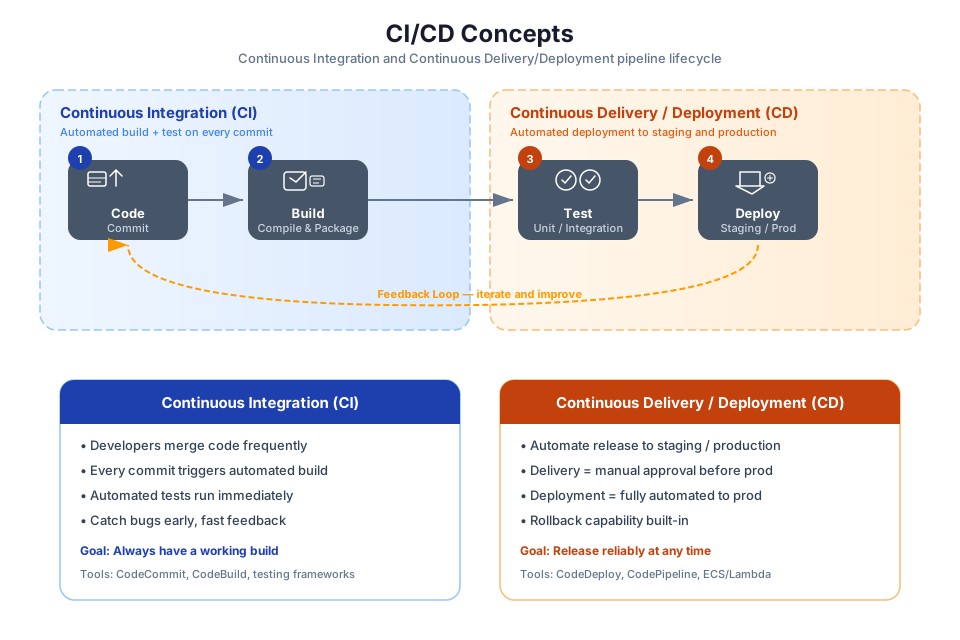
Continuous Integration (CI) is the practice of automatically building and testing code every time a developer pushes changes to a shared repository. Instead of waiting days or weeks to integrate work from multiple developers, CI merges and validates changes continuously. This catches integration errors early, when they are small and easy to fix.
Continuous Delivery (CD) extends CI by automatically deploying validated code to staging or production environments. With CD, every code change that passes the automated build and test stages is a release candidate. The deployment to production can be triggered automatically or gated behind a manual approval step.
Together, CI/CD creates an automated pipeline that takes code from a developer's commit all the way to a running application:
Developer pushes code
    |
    v
Source Stage (pull code from repository)
    |
    v
Build Stage (compile, install dependencies, run unit tests)
    |
    v
Test Stage (integration tests, security scans)
    |
    v
Staging Deployment (deploy to a non-production environment)
    |
    v
Manual Approval (optional gate before production)
    |
    v
Production Deployment (deploy to live environment)
The benefits of CI/CD include:
| Benefit | Description |
|---|---|
| Faster feedback | Developers learn about build failures and test errors within minutes of pushing code, not days later during a manual integration phase. |
| Reduced risk | Small, frequent deployments are easier to troubleshoot and roll back than large, infrequent releases that bundle weeks of changes. |
| Consistent process | Every deployment follows the same automated steps, eliminating human error from manual deployments. |
| Audit trail | Every pipeline execution records who triggered it, what code was deployed, and whether each stage passed or failed. |
| Higher confidence | Automated tests run on every change, so the team knows the code in production has passed a defined quality bar. |
In Module 11, you learned that IaC templates should be stored in version control and deployed through automation. CI/CD pipelines are the automation layer that makes this possible. A pipeline can deploy both your application code and your infrastructure templates in a single, repeatable workflow.
Tip: CI and CD are often discussed together, but they are independent practices. You can adopt CI (automated builds and tests) without CD (automated deployments). Start with CI to build confidence in your automated tests, then add CD stages incrementally.
AWS Developer Tools Overview
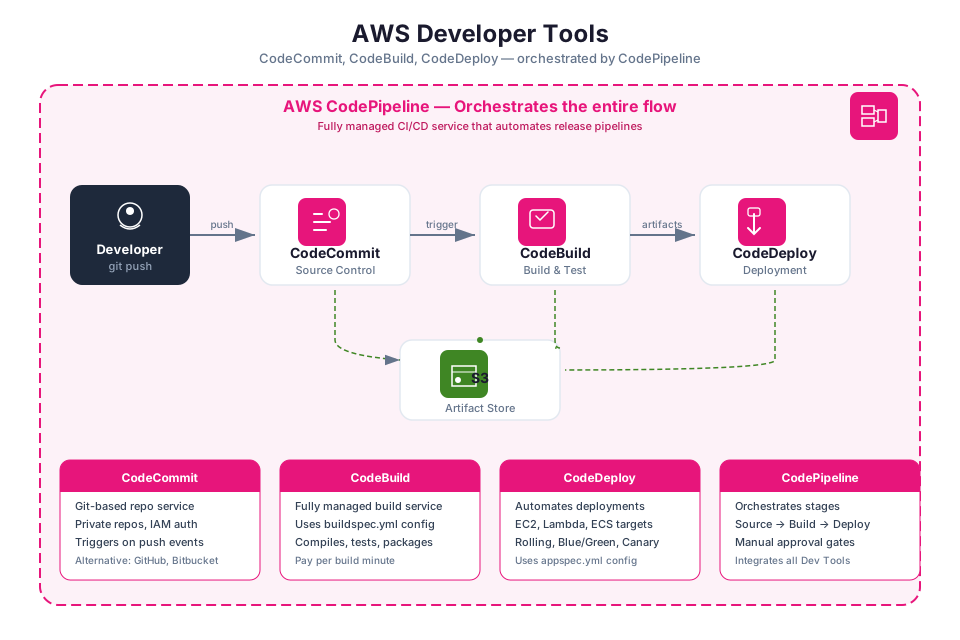
AWS provides a suite of developer tools that cover each stage of the software release process. These services integrate with each other and with third-party tools such as GitHub and Jenkins.
| Service | Purpose | Stage in Pipeline |
|---|---|---|
| AWS CodeCommit | Managed Git repository hosting (deprecated; use GitHub or other Git providers) | Source |
| AWS CodeBuild | Managed build service that compiles code, runs tests, and produces artifacts | Build and Test |
| AWS CodeDeploy | Automated deployment service for EC2, ECS, and Lambda | Deploy |
| AWS CodePipeline | Continuous delivery orchestration that connects source, build, test, and deploy stages | Orchestration |
| AWS CodeArtifact | Managed artifact repository for software packages (npm, pip, Maven, NuGet) | Dependency Management |
AWS CodeCommit was a fully managed Git hosting service, but AWS has deprecated it for new customers. Most teams now use GitHub, GitLab, or Bitbucket as their source provider and connect these repositories to CodePipeline through AWS CodeConnections. The rest of the AWS developer tools remain actively developed and widely used.
Tip: You do not need to use every AWS developer tool together. Many teams use GitHub for source control and GitHub Actions for CI, then integrate with CodeDeploy for deployment to AWS infrastructure. Choose the combination that fits your team's existing workflow.
Source Stage: Connecting Your Repository to the Pipeline
The source stage is the entry point of a CI/CD pipeline. It monitors a code repository for changes and triggers the pipeline when new commits are pushed. CodePipeline supports several source providers:
| Source Provider | Connection Method | Trigger Mechanism |
|---|---|---|
| GitHub (via GitHub App) | AWS CodeConnections | Webhook (push event) |
| Bitbucket Cloud | AWS CodeConnections | Webhook (push event) |
| GitLab | AWS CodeConnections | Webhook (push event) |
| AWS CodeCommit | Direct integration | Amazon EventBridge rule |
| Amazon S3 | Direct integration | Amazon EventBridge rule (on object upload) |
When you connect GitHub to CodePipeline, you create a connection through AWS CodeConnections. This connection authorizes CodePipeline to access your repository without storing long-lived credentials. When you push a commit to the configured branch, GitHub sends a webhook notification to CodePipeline, which starts a new pipeline execution.
Branch Triggers and Filtering
By default, a source action triggers on every push to the configured branch (typically main or production). You can configure trigger filters to control when the pipeline starts:
- Branch filters. Trigger only on pushes to specific branches (for example,
mainbut notfeature/*). - File path filters. Trigger only when changes affect specific directories or file types (for example, trigger only when files in
src/change, not when only documentation changes). - Tag filters. Trigger on Git tag creation (useful for release workflows).
Source Artifacts
When the source stage runs, it downloads the repository contents and packages them as a source artifact. This artifact is an archive (ZIP file) stored in an S3 bucket that CodePipeline manages. Subsequent stages (build, deploy) receive this artifact as input.
Tip: Configure your pipeline to trigger on the branch that represents your deployment target. For example, use
mainfor production pipelines anddevelopfor staging pipelines. Avoid triggering pipelines on every branch push, as this wastes build minutes and can cause confusion.
AWS CodeBuild: Compiling, Testing, and Packaging Your Code
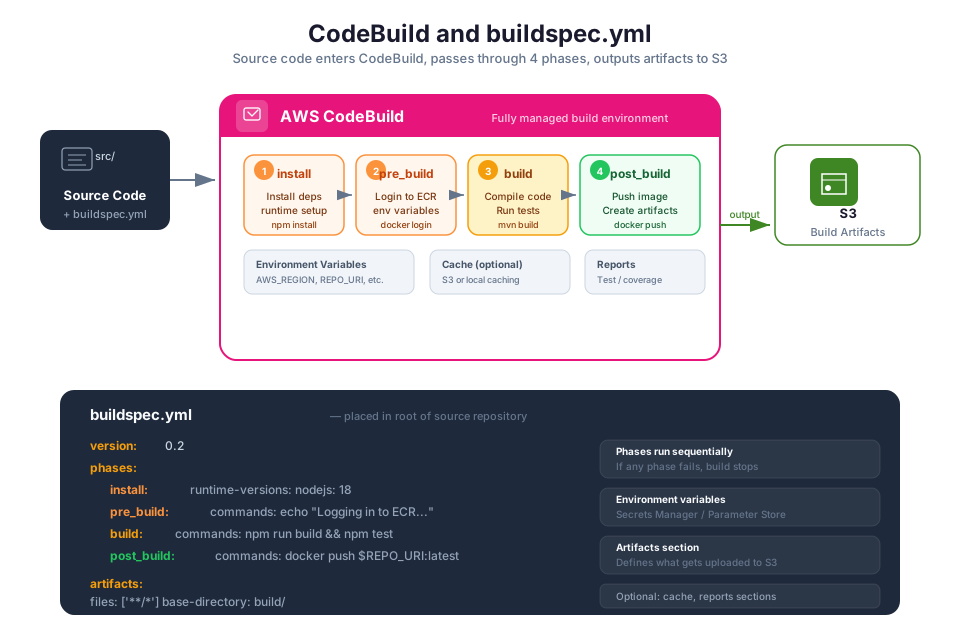
AWS CodeBuild handles the "build and test" phase without requiring you to maintain build servers. You give it a buildspec file describing what to do, and CodeBuild spins up a fresh container, runs your commands, and tears down the environment when finished. You pay only for the minutes your builds consume, and it scales horizontally to handle concurrent builds without queuing.
CodeBuild operates on a disposable-environment model: it launches a Docker container, pulls your source code, executes the commands in your buildspec, uploads the resulting artifacts, and destroys the container. Since each build starts clean, you avoid "works on my machine" problems caused by leftover state from previous builds.
The buildspec.yml File
The buildspec.yml file is a YAML document that tells CodeBuild exactly what to do during a build. You place this file in the root of your source repository. It defines environment variables, build phases, artifact locations, and caching rules.
version: 0.2

env:
  variables:
    NODE_ENV: "production"
  parameter-store:
    DB_PASSWORD: "/myapp/db-password"

phases:
  install:
    runtime-versions:
      nodejs: 20
    commands:
      - echo "Installing dependencies..."
      - npm ci

  pre_build:
    commands:
      - echo "Running linting and unit tests..."
      - npm run lint
      - npm run test

  build:
    commands:
      - echo "Building the application..."
      - npm run build

  post_build:
    commands:
      - echo "Build completed on $(date)"

artifacts:
  files:
    - "**/*"
  base-directory: dist

cache:
  paths:
    - "node_modules/**/*"
Build Phases
Each build phase runs sequentially. If any command in a phase fails (returns a non-zero exit code), CodeBuild marks the build as failed and skips remaining phases.
| Phase | Purpose | Common Commands |
|---|---|---|
install | Install build dependencies and runtime versions | npm ci, pip install, select runtime versions |
pre_build | Run tasks that must complete before the main build | Linting, unit tests, Docker login, environment setup |
build | Compile code, run the main build process | npm run build, mvn package, docker build |
post_build | Run tasks after the build completes | Push Docker images, generate reports, send notifications |
Build Environments
CodeBuild provides managed build images based on Amazon Linux and Ubuntu, with pre-installed runtimes for popular languages. You can also use custom Docker images from Amazon ECR or Docker Hub if you need specific tools or libraries.
Build environment compute types determine the CPU and memory available:
| Compute Type | vCPUs | Memory | Use Case |
|---|---|---|---|
| BUILD_GENERAL1_SMALL | 2 | 3 GB | Small projects, quick builds |
| BUILD_GENERAL1_MEDIUM | 4 | 7 GB | Most application builds |
| BUILD_GENERAL1_LARGE | 8 | 15 GB | Large projects, parallel test suites |
| BUILD_GENERAL1_2XLARGE | 72 | 145 GB | Very large builds, Android builds |
Caching
CodeBuild supports caching to speed up subsequent builds. The cache section in buildspec.yml specifies directories to cache between builds (such as node_modules/ or .m2/repository/). CodeBuild stores the cache in S3 and restores it at the start of the next build, skipping dependency downloads that have not changed.
Tip: Always use
npm ciinstead ofnpm installin build environments. Thecicommand installs dependencies from the lock file exactly, which is faster and more deterministic thannpm install. The same principle applies to other package managers: use the lock-file-based install command (pip install -r requirements.txt,mvn dependency:resolve).
AWS CodeDeploy: Automating Application Deployments
AWS CodeDeploy takes your build artifacts and rolls them out to EC2 instances, Lambda functions, or ECS services. It coordinates the update sequence, monitors health checks during rollout, and can automatically roll back if something breaks, so you do not have to babysit deployments manually.
Core Concepts
CodeDeploy organizes deployments around three concepts:
- Application. A name that uniquely identifies the software you want to deploy. An application serves as a container for deployment groups and revisions.
- Deployment group. A set of target instances or services that receive the deployment. For EC2 deployments, a deployment group identifies instances by tags or Auto Scaling group membership. For ECS deployments, it specifies the ECS service, load balancer, and target groups.
- Revision. The version of your application to deploy. A revision includes the application files and an appspec.yml file that tells CodeDeploy how to deploy them.
The appspec.yml File
The appspec.yml file is the deployment instruction set for CodeDeploy. Its structure varies by compute platform.
For EC2/on-premises deployments, appspec.yml specifies where to copy files and which lifecycle hook scripts to run:
version: 0.0
os: linux

files:
  - source: /
    destination: /var/www/myapp

hooks:
  BeforeInstall:
    - location: scripts/stop_server.sh
      timeout: 120
      runas: root

  AfterInstall:
    - location: scripts/install_dependencies.sh
      timeout: 300
      runas: root

  ApplicationStart:
    - location: scripts/start_server.sh
      timeout: 120
      runas: root

  ValidateService:
    - location: scripts/validate_service.sh
      timeout: 120
      runas: root
For Amazon ECS deployments, appspec.yml specifies the task definition and container configuration:
version: 0.0

Resources:
  - TargetService:
      Type: AWS::ECS::Service
      Properties:
        TaskDefinition: "arn:aws:ecs:us-east-1:123456789012:task-definition/my-app:2"
        LoadBalancerInfo:
          ContainerName: "web"
          ContainerPort: 3000
Deployment Configurations
Deployment configurations control how CodeDeploy rolls out changes to your deployment group. For EC2 deployments, configurations define how many instances to update at a time. For ECS and Lambda deployments, configurations define how traffic shifts between the old and new versions.
Built-in EC2 deployment configurations:
| Configuration | Behavior |
|---|---|
CodeDeployDefault.AllAtOnce | Deploy to all instances simultaneously |
CodeDeployDefault.HalfAtATime | Deploy to up to half the instances at a time |
CodeDeployDefault.OneAtATime | Deploy to one instance at a time |
Built-in ECS deployment configurations:
| Configuration | Traffic Shift Pattern |
|---|---|
CodeDeployDefault.ECSAllAtOnce | Shift all traffic to the new task set at once |
CodeDeployDefault.ECSLinear10PercentEvery1Minutes | Shift 10% of traffic every minute |
CodeDeployDefault.ECSCanary10Percent5Minutes | Shift 10% initially, then the remaining 90% after 5 minutes |
Warning: The
AllAtOnceconfiguration deploys to every instance simultaneously. If the new version has a bug, all instances are affected at the same time with no healthy instances to fall back to. UseHalfAtATimeorOneAtATimefor production deployments to maintain availability during the rollout.
AWS CodePipeline: Orchestrating the Release Process
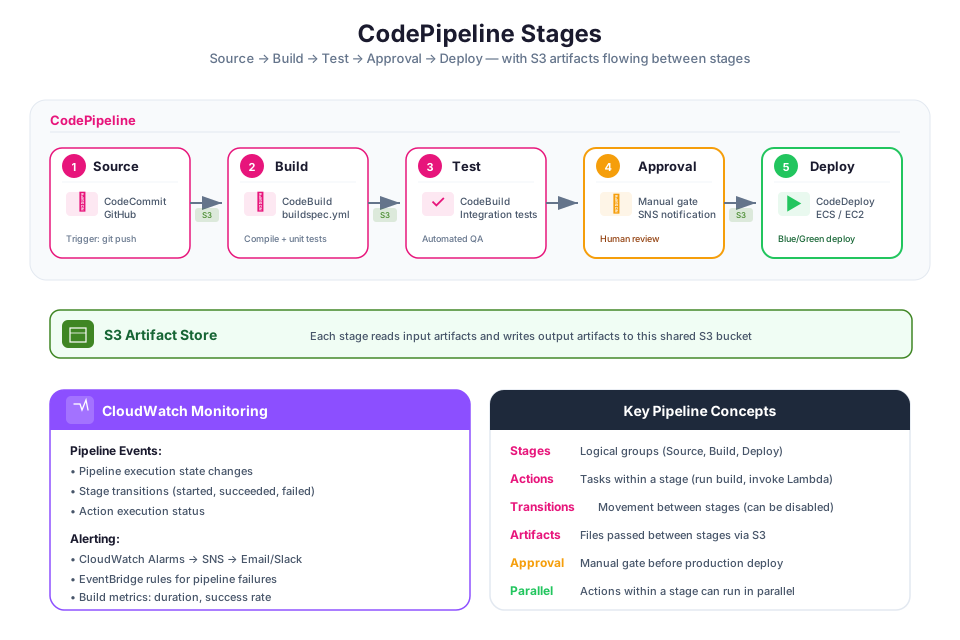
AWS CodePipeline ties everything together. It orchestrates the flow from source to production by connecting your repository, build service, test tools, and deployment targets into a single automated workflow. When a code change lands, CodePipeline moves it through each stage sequentially, passing artifacts along the way.
Pipeline Structure
A pipeline consists of stages, and each stage contains one or more actions. Stages run sequentially (the deploy stage waits for the build stage to complete), while actions within a stage can run in parallel or sequentially depending on their configuration.
Pipeline: my-app-pipeline
├── Stage 1: Source
│   └── Action: GitHub source (pulls code on push to main)
├── Stage 2: Build
│   └── Action: CodeBuild (compiles, tests, packages)
├── Stage 3: Staging
│   └── Action: CodeDeploy (deploys to staging environment)
├── Stage 4: Approval
│   └── Action: Manual approval (human gate before production)
└── Stage 5: Production
    └── Action: CodeDeploy (deploys to production environment)
Actions and Action Types
Each action in a pipeline performs a specific task. CodePipeline supports several action categories:
| Action Category | Purpose | Example Providers |
|---|---|---|
| Source | Detect and retrieve source code changes | GitHub, CodeCommit, S3, ECR |
| Build | Compile code, run tests, produce artifacts | CodeBuild, Jenkins |
| Test | Run additional test suites | CodeBuild, third-party testing tools |
| Deploy | Deploy artifacts to target environments | CodeDeploy, CloudFormation, ECS, S3 |
| Approval | Pause the pipeline for manual review | Manual approval action |
| Invoke | Call a Lambda function for custom logic | AWS Lambda |
Artifact Passing Between Stages
Stages communicate through artifacts. The source stage produces a source artifact (your code). The build stage consumes the source artifact and produces a build artifact (compiled code, Docker image reference, or deployment package). The deploy stage consumes the build artifact and deploys it.
CodePipeline stores artifacts in an S3 bucket that it creates when you set up the pipeline. Each artifact is a ZIP file identified by a name you define in the pipeline configuration. You reference these names in your buildspec.yml and action configurations to connect the inputs and outputs of each stage.
Transitions
Transitions are the links between stages. You can disable a transition to prevent a pipeline from advancing to the next stage. This is useful when you want to pause deployments temporarily (for example, during a maintenance window or while investigating an issue in staging). Re-enabling the transition allows the pipeline to continue from where it stopped.
Manual Approval Actions
A manual approval action pauses the pipeline and waits for a human to approve or reject the execution. This is the most common way to gate production deployments. When the pipeline reaches an approval action, it sends a notification (typically through Amazon SNS) to the designated reviewers. The reviewer examines the changes, verifies the staging deployment, and either approves (allowing the pipeline to continue) or rejects (stopping the pipeline).
Manual approvals are configured with:
- Review URL. A link to the staging environment or change log for the reviewer to inspect.
- Comments. Context about what is being deployed and what to verify.
- SNS topic. The notification channel for alerting reviewers.
- Timeout. How long the pipeline waits for approval before timing out (default is 7 days).
Tip: Use manual approvals for production deployments, especially when you are first adopting CI/CD. As your team builds confidence in automated testing and staging validation, you can consider removing the manual gate and moving to fully automated deployments.
Deployment Strategies: Choosing How to Roll Out Changes
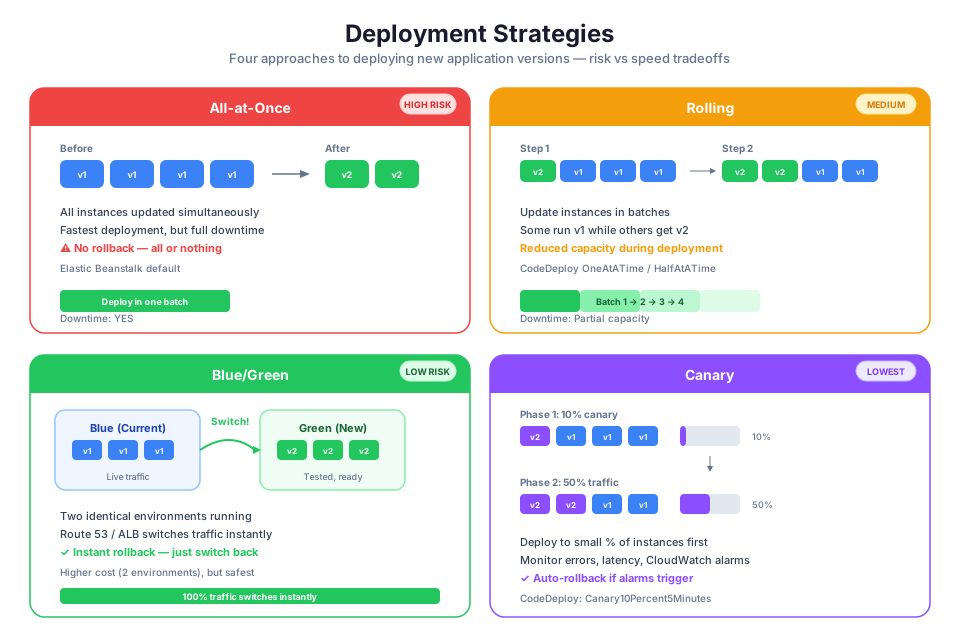
Deployment strategies define how new code replaces the old version in your production environment. Each strategy makes different trade-offs between deployment speed, risk, cost, and complexity. Choosing the right strategy depends on your application's availability requirements and your team's tolerance for risk.
All-at-Once
All-at-once deployment updates every instance or task simultaneously. The new version replaces the old version on all targets at the same time.
- Advantage. Fastest deployment time.
- Disadvantage. If the new version has a defect, all instances are affected simultaneously. There is a brief period of downtime during the switchover.
- Best for. Development and test environments where speed matters more than availability.
Rolling
Rolling deployment updates instances in batches. CodeDeploy takes a subset of instances out of service, deploys the new version to them, verifies health, and then moves to the next batch. During the deployment, some instances run the old version and some run the new version.
- Advantage. Maintains partial availability throughout the deployment. If a batch fails, the remaining instances still run the old version.
- Disadvantage. During the rollout, two versions of the application serve traffic simultaneously, which can cause compatibility issues if the versions have different API contracts or database schemas.
- Best for. Stateless applications where running mixed versions briefly is acceptable.
Blue/Green
Blue/green deployment creates a complete copy of the production environment (the "green" environment) running the new version alongside the existing environment (the "blue" environment). After the green environment passes health checks, traffic is shifted from blue to green. If the green environment fails, traffic is shifted back to blue immediately.
- Advantage. Near-zero downtime. Instant rollback by redirecting traffic back to the blue environment. The old environment remains intact until you explicitly terminate it.
- Disadvantage. Requires double the infrastructure during the deployment, which increases cost temporarily.
- Best for. Production environments where availability is critical and you need instant rollback capability.
Canary
Canary deployment is a variation of blue/green that shifts traffic in two phases. First, a small percentage of traffic (the "canary" group, typically 5% to 10%) is routed to the new version. If the canary group performs well (low error rate, acceptable latency), the remaining traffic shifts to the new version. If the canary group shows problems, the deployment rolls back automatically.
- Advantage. Limits the blast radius of a bad deployment. Only a small percentage of users are affected if the new version has issues.
- Disadvantage. More complex to configure. Requires monitoring and alerting to detect problems in the canary group quickly.
- Best for. High-traffic production services where you want to validate changes with real traffic before a full rollout.
Strategy Comparison
| Strategy | Downtime | Rollback Speed | Infrastructure Cost | Complexity | Risk Level |
|---|---|---|---|---|---|
| All-at-once | Brief (during switchover) | Slow (redeploy old version) | Normal | Low | High |
| Rolling | None (partial capacity) | Medium (stop and redeploy remaining batches) | Normal | Medium | Medium |
| Blue/green | None | Instant (redirect traffic to blue) | Double during deployment | Medium | Low |
| Canary | None | Instant (redirect canary traffic back) | Slightly above normal | High | Very low |
Tip: Start with rolling deployments for most workloads. Move to blue/green when you need instant rollback for mission-critical services. Add canary deployments when you want to validate changes with a small percentage of real traffic before committing to a full rollout.
GitHub Actions: An Alternative CI/CD Approach
GitHub Actions is a CI/CD platform built into GitHub that lets you automate workflows directly from your repository. If your team already uses GitHub for source control, GitHub Actions provides a tightly integrated alternative to CodePipeline for the build and test stages of your pipeline.
How GitHub Actions Works
GitHub Actions uses workflow files written in YAML and stored in the .github/workflows/ directory of your repository. A workflow defines one or more jobs, each containing a series of steps. Workflows are triggered by GitHub events such as pushes, pull requests, or tag creation.
name: Build and Test

on:
  push:
    branches: [main]
  pull_request:
    branches: [main]

jobs:
  build:
    runs-on: ubuntu-latest
    steps:
      - uses: actions/checkout@v4

      - name: Set up Node.js
        uses: actions/setup-node@v4
        with:
          node-version: "20"

      - name: Install dependencies
        run: npm ci

      - name: Run tests
        run: npm test

      - name: Build
        run: npm run build
GitHub Actions vs. CodePipeline
| Feature | GitHub Actions | AWS CodePipeline |
|---|---|---|
| Source control integration | Native GitHub integration | Connects to GitHub, CodeCommit, S3, Bitbucket, GitLab |
| Build environment | GitHub-hosted runners or self-hosted | CodeBuild managed environments |
| Deployment to AWS | Requires AWS credential configuration (OIDC recommended) | Native integration with CodeDeploy, CloudFormation, ECS, S3 |
| Pricing | Free tier for public repos; minutes-based for private repos | Pay per active pipeline per month plus CodeBuild minutes |
| Marketplace | Thousands of community-built actions | Integrations with AWS services and select third-party tools |
| Visibility | Workflow runs visible in GitHub UI | Pipeline visualization in AWS Console |
| AWS service integration | Manual setup via AWS CLI or community actions | Built-in actions for CodeDeploy, CloudFormation, ECS, Lambda |
When to Use Each
Choose GitHub Actions when:
- Your team uses GitHub as the primary source control platform.
- Your CI/CD workflow is primarily build and test, with deployment handled separately.
- You want to leverage the large ecosystem of community-built actions.
- Your deployment targets span multiple cloud providers, not just AWS.
Choose CodePipeline when:
- You need deep integration with AWS deployment services (CodeDeploy blue/green, CloudFormation stack updates, ECS deployments).
- Your pipeline requires manual approval gates with SNS notifications.
- You want a visual pipeline editor and execution history in the AWS Console.
- Your organization standardizes on AWS developer tools for governance and compliance.
Hybrid approach: Many teams use GitHub Actions for CI (build and test on every pull request) and CodePipeline for CD (deploy to AWS environments after merging to main). This combines the developer experience of GitHub Actions with the deployment capabilities of CodePipeline.
Tip: If you use GitHub Actions to deploy to AWS, configure authentication using OpenID Connect (OIDC) federation instead of storing AWS access keys as GitHub secrets. OIDC provides short-lived credentials and eliminates the risk of long-lived key exposure.
Artifact Management: CodeArtifact and S3
CI/CD pipelines produce and consume artifacts at every stage. Managing these artifacts, both the build outputs and the software dependencies your application needs, is a critical part of a reliable pipeline.
Build Artifacts with Amazon S3
CodePipeline uses Amazon S3 as the default artifact store. When a source action retrieves your code or a build action produces compiled output, CodePipeline stores the result as a ZIP file in an S3 bucket. Each pipeline creates its own artifact bucket (or you can specify an existing one).
Build artifacts flow through the pipeline as named references. For example, a CodeBuild action might produce an artifact called BuildOutput that a subsequent CodeDeploy action consumes as its input. This artifact-passing mechanism is how stages share data without direct coupling.
For teams that build container images, the "artifact" is often a reference to an image in Amazon ECR rather than a ZIP file. The build stage pushes the image to ECR, and the deploy stage references the image URI in the ECS task definition.
Package Dependencies with AWS CodeArtifact
AWS CodeArtifact acts as a private package registry that sits between your builds and public registries like npmjs.com or PyPI. It caches packages locally so your builds do not break when a public registry goes down, and it gives you a control point to block vulnerable or unapproved packages.
CodeArtifact addresses three pain points in CI/CD workflows:
- Dependency availability. If npmjs.com or PyPI goes down during your build, CodeArtifact serves packages from its local cache so builds keep running.
- Security control. You can restrict which packages your team can pull, blocking known-vulnerable versions before they enter your codebase.
- Private packages. Internal libraries live alongside public dependencies in one registry, so developers use a single package manager configuration.
To configure npm to use CodeArtifact in a CodeBuild buildspec:
phases:
  pre_build:
    commands:
      - aws codeartifact login --tool npm --domain my-domain --repository my-repo --region us-east-1
  install:
    commands:
      - npm ci
Tip: Configure CodeArtifact as an upstream repository that proxies requests to the public registry. Your package manager configuration points to CodeArtifact, which fetches and caches packages from the public registry on first request. Subsequent requests are served from the cache, improving build speed and reliability.
Pipeline Best Practices
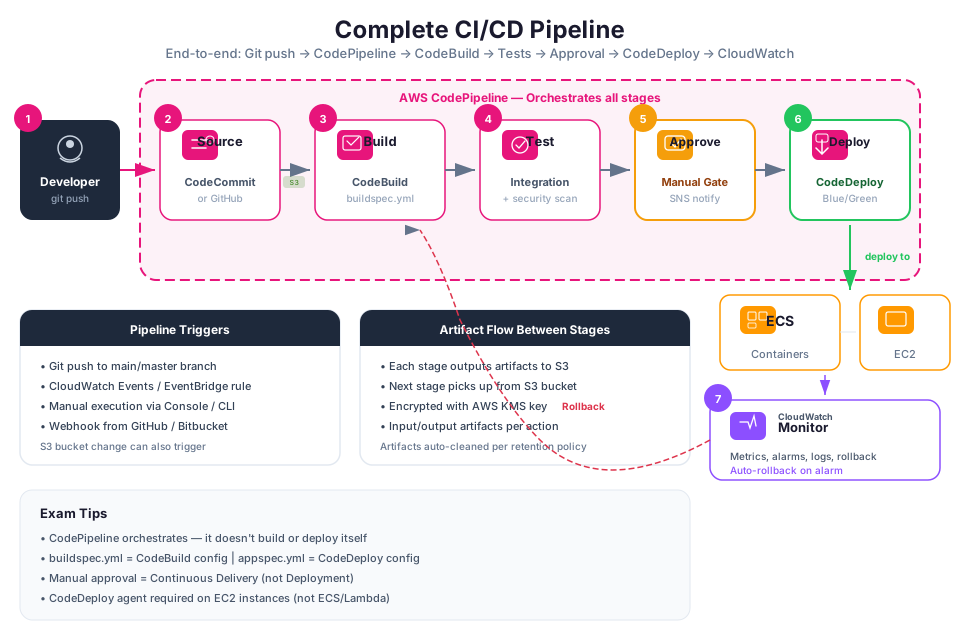
Building a pipeline that works is the first step. Building a pipeline that is reliable, secure, and maintainable requires following established best practices.
Separate Stages for Separate Concerns
Structure your pipeline with distinct stages for each phase of the release process. Do not combine building, testing, and deploying into a single stage. Separate stages provide clear visibility into where a failure occurred and allow you to retry or skip individual stages.
A recommended stage structure:
- Source. Pull code from the repository.
- Build. Compile code, install dependencies, run unit tests, produce artifacts.
- Test. Run integration tests, security scans, and code quality checks.
- Staging. Deploy to a staging environment that mirrors production.
- Approval. Manual review gate (for production pipelines).
- Production. Deploy to the production environment.
Automated Testing at Every Level
Include automated tests in your pipeline to catch defects before they reach production:
| Test Type | When to Run | What It Validates |
|---|---|---|
| Unit tests | Build stage | Individual functions and classes work correctly in isolation |
| Integration tests | Test stage | Components work together correctly (API endpoints, database queries) |
| Security scans | Test stage | Dependencies have no known vulnerabilities; code follows security best practices |
| Smoke tests | After staging deployment | The deployed application responds to basic requests and critical paths work |
Manual Approval for Production
Gate production deployments behind a manual approval action, especially when you are first adopting CI/CD. The approval step gives a human the opportunity to verify the staging deployment, review the change log, and confirm that the release is ready. As your team gains confidence in automated testing, you can consider removing the manual gate.
Rollback Strategies
Plan for deployment failures before they happen:
- Automatic rollback. Configure CodeDeploy to roll back automatically when health checks fail or when a CloudWatch alarm triggers during deployment.
- Manual rollback. Keep the previous deployment artifact available so you can redeploy it quickly if automated rollback does not trigger.
- Database rollback. If your deployment includes database schema changes, ensure those changes are backward-compatible so that rolling back the application code does not break the database.
Pipeline as Code
Define your pipeline configuration in a CloudFormation template or CDK construct, not through the console. This applies the same IaC principles you learned in Module 11 to your pipeline itself. Storing the pipeline definition in version control lets you review changes, track history, and recreate the pipeline in another account or Region.
# CloudFormation snippet for a CodePipeline resource
Resources:
  MyPipeline:
    Type: AWS::CodePipeline::Pipeline
    Properties:
      Name: my-app-pipeline
      RoleArn: !GetAtt PipelineRole.Arn
      ArtifactStore:
        Type: S3
        Location: !Ref ArtifactBucket
      Stages:
        - Name: Source
          Actions:
            - Name: GitHubSource
              ActionTypeId:
                Category: Source
                Owner: AWS
                Provider: CodeStarSourceConnection
                Version: "1"
              Configuration:
                ConnectionArn: !Ref GitHubConnection
                FullRepositoryId: "my-org/my-repo"
                BranchName: main
              OutputArtifacts:
                - Name: SourceOutput
        - Name: Build
          Actions:
            - Name: CodeBuild
              ActionTypeId:
                Category: Build
                Owner: AWS
                Provider: CodeBuild
                Version: "1"
              Configuration:
                ProjectName: !Ref BuildProject
              InputArtifacts:
                - Name: SourceOutput
              OutputArtifacts:
                - Name: BuildOutput
Tip: Apply the principle of least privilege to your pipeline's IAM roles. The pipeline service role needs permission to access S3 artifacts, start CodeBuild projects, and trigger CodeDeploy deployments. The CodeBuild service role needs permission to pull source code and push artifacts. The CodeDeploy service role needs permission to update the target compute resources. Keep these roles separate and scoped to their specific responsibilities.
Instructor Notes
Estimated lecture time: 75 to 90 minutes
Common student questions:
-
Q: What is the difference between Continuous Delivery and Continuous Deployment? A: Continuous Delivery means every code change is automatically built, tested, and prepared for release, but a human approves the final deployment to production. Continuous Deployment removes the manual approval step entirely, so every change that passes automated tests is deployed to production automatically. Most teams start with Continuous Delivery and move to Continuous Deployment as their automated test coverage and confidence increase.
-
Q: Do I need to use all the AWS developer tools together, or can I mix and match? A: You can mix and match freely. A common pattern is to use GitHub for source control, GitHub Actions or CodeBuild for CI, and CodeDeploy for deployment. CodePipeline is the orchestration layer that connects these pieces, but you can also orchestrate with GitHub Actions or other tools. Choose the combination that fits your team's workflow.
-
Q: How do I handle database migrations in a CI/CD pipeline? A: Run database migrations as a separate step before deploying the new application code. Ensure migrations are backward-compatible so the old application version can still work with the updated schema. This allows you to roll back the application without rolling back the database. Tools like Flyway, Alembic, and Knex provide migration frameworks that integrate into build scripts.
-
Q: When should I use blue/green instead of rolling deployments? A: Use blue/green when you need instant rollback capability and cannot tolerate running mixed versions during a deployment. Blue/green is especially valuable for stateful applications, services with strict API compatibility requirements, or any workload where a failed deployment must be reversed in seconds rather than minutes.
Teaching tips:
- Start the lecture by asking students how they currently deploy code (manually, scripts, CI/CD). This grounds the discussion in their experience and motivates the need for automation.
- When explaining the pipeline stages, draw the flow on a whiteboard and walk through a concrete example: "A developer pushes a bug fix to main. What happens next?" Trace the change through each stage.
- Pause after the deployment strategies section for a comparison exercise. Present a scenario (for example, "an e-commerce site during Black Friday") and ask students which deployment strategy they would choose and why.
- The buildspec.yml and appspec.yml examples are good candidates for a live coding demonstration. Show a build failing due to a missing dependency, then fix the buildspec and re-run.
- Emphasize that CI/CD is a practice, not just a tool. The tools automate the process, but the team must commit to writing tests, reviewing code, and deploying frequently for CI/CD to deliver its benefits.
Key Takeaways
- CI/CD automates the build, test, and deploy cycle so that every code change follows a consistent, repeatable path from commit to production.
- AWS CodePipeline orchestrates the release process by connecting source, build, test, and deploy stages into a single workflow, with CodeBuild handling compilation and testing and CodeDeploy handling deployment.
- Deployment strategies (all-at-once, rolling, blue/green, canary) offer different trade-offs between speed, risk, and cost; choose based on your application's availability requirements.
- Always include automated tests in your pipeline and gate production deployments with manual approvals until your team has high confidence in the automated quality checks.
- Define your pipeline configuration as code (CloudFormation or CDK) and store it in version control alongside your application, applying the same IaC principles from Module 11.
AWS Bootcamp: From Novice to Architect Author: Samuel Ogunti License: CC BY-NC 4.0